
This page was created to introduce what ‘HEIF’ really means, as can be a little bit confusing in Apple’s ecosystem where apps and documents can be talking and showing HEIF but all files created are .heic.
The arguable biggest takeaway is DO USE HEIF. To get way smaller files without any loss. (Compared to older formats like JPEG or PNG.) (Research more – search.brave.com/search?q=heic+vs+jpg+vs+png)
Contents
About Formats, Terminology
- HEIF = *container* format, file format, an international standard defined in 2013
- HEVC = an *encoding format* (‘CODEC’), how materials inside are compressed – use for both images and video
- HEIC = An HEIF file with material inside specifically encoded using HEVC.
- I.e.
- An HEIC file is ALWAYS a HEIF file, simply clarifying material inside uses HEVC.
- An HEIF file is a HEIC – when use HEVC inside – but may also NOT be – if use other compression technology.
“The requirements and main use cases of HEIF were defined in 2013.[4][5] The technical development of the specification took about one and a half years and was finalized in the middle of 2015.[6]” [Wikipedia]
Apple:
- “Apple was the first major adopter of the format in 2017 with the introduction of iOS 11 using the HEIC variant. While HEIC became the default for iPhones, it is possible to revert the settings to allow photos to be recorded in the JPEG format.[7]
( Android devices containing the appropriate hardware encoders received support for HEIC files with the release of Android 10 (2019).[8] )” [Wikipedia] - Note: this is why files from Apple devices uses .heic even if Apple apps / user interfaces can have choices between (e.g.) ‘HEIF’ and ‘JPEG’ – files created are the .heic-variants of HEIF formatted files.
- Note: For movie/video files, Apple continue to use their .MOV format, which also is a *container* format, with specific requirements.
Summary of Differences
| Feature | HEVC | HEIF | HEIC |
| Role | Compression Codec | File Container | Vendor Implementation |
| Function | Shrinks pixel data | Structures file/metadata | Apple’s HEIF + HEVC file |
| Standard | ISO/IEC 23008-2 | ISO/IEC 23008-12 | Apple Brand of HEIF |
| Extension | N/A (internal) | .heif |
.heic |
| Relationship | Inside HEIF | Wraps HEVC | Is a HEIF file |
In short: HEVC is the compression method, HEIF is the file format container, and HEIC is the specific file type produced by Apple devices using HEIF and HEVC together.
- search.brave.com/search?q=heic+heif+hevc
- HEIF: en.wikipedia.org/wiki/High_Efficiency_Image_File_Format
- HEIF can store images encoded with multiple coding formats, for example both SDR and HDR images. HEVC is an image and video encoding format and the default image codec used with HEIF. HEIF files containing HEVC-encoded images are also known as HEIC files and are mandated to use the
.heicfilename extension or.heicsas stated in the standard. Such files require less storage space than the equivalent-quality JPEG files of the same images.[2][3]
- HEIF can store images encoded with multiple coding formats, for example both SDR and HDR images. HEVC is an image and video encoding format and the default image codec used with HEIF. HEIF files containing HEVC-encoded images are also known as HEIC files and are mandated to use the
- Battle of the Formats: HEIF vs HEIC – cloudinary.com/guides/image-formats/heif-vs-heic
- HEVC: en.wikipedia.org/wiki/High_Efficiency_Video_Coding
Why use HEIF/HEIC
For people primarily in Apple ecosystem, it’s a no-brainer! Smaller files w/o any loss.
For others, and for general knowledge, extract from Battle of the Formats: HEIF vs HEIC, cloudinary.com/guides/image-formats/heif-vs-heic:
Benefits of Using HEIF and HEIC Formats
Both formats offer remarkable compression, leading to smaller file sizes without losing image quality. This is great for developers trying to enhance user experience by reducing load times and saving bandwidth. Smaller file sizes also mean users can store more photos on their devices.
HEIF and HEIC support features beyond traditional image formats. These include the ability to store multiple images in one file, perfect for bursts or animated photos, and the capability to save image edits and settings along with the original image. This makes them incredibly efficient for extensive media editing applications, as they can handle complex imaging tasks while preserving the original content’s integrity.
Another big benefit is the efficiency of storing metadata. HEIF and HEIC files can store metadata in a way that is both comprehensive and compact, supporting richer data like depth maps and HDR information. This makes both formats pretty useful for advanced photographic techniques and applications that use AI for image enhancement, providing a richer context for image processing algorithms.
How do HEIF and HEIC Compare to JPEG and PNG?
HEIF and HEIC offer some significant advantages over older, more established formats like JPEG and PNG, mainly in terms of compression and image features.
Thanks to its compatibility and simple compression, JPEG has been the default image format for decades. However, JPEG compression often results in a noticeable loss of quality, especially under heavy compression settings. HEIF and HEIC, using more advanced compression algorithms, retain much higher image quality at similar or smaller file sizes.
Unlike JPEG, HEIF and HEIC support advanced imaging capabilities such as storing multiple images in a single file and non-destructive editing, making them far more suitable for modern photography workflows where such features are increasingly demanded.
Conversely, PNG is often used to support transparency and lossless compression, making it ideal for web graphics. However, PNG files can become prohibitively large, making HEIF and HEIC better options for color-rich images due to their superior compression.
HEIF and HEIC’s ability to handle high dynamic range (HDR) and wide color gamut images also sets them apart. These capabilities make them ideal for next-generation imaging applications, where richer and more detailed photos are necessary. The enhanced color and dynamic range support in HEIF and HEIC can provide a more immersive visual experience, something that JPEG and PNG struggle to deliver due to their limited color and dynamic range capabilities.
Market Acceptance – Use in General
| Area | In General, use of HEIF/HEIC | Caution |
| Apple’s ecosystem | ✅ No-brainer | Older devices |
| Google/Android/… | ⁉️ Unsure | |
| Microsoft/Windows/… | ⁉️ Unsure | |
| Emails, SMSs | As Web (next), and Apple’s apps typically automatically converts media included in messages to | |
| Web (browsers) | ⚠️⛔️ HEIF is intended for capturing and storing media (photos) and as such usually is way too large for good support in web-applications, where smaller is better – for faster transfer from server to web browsers. For web publishing, WebP is the preferred format because it offers a good balance of compression (25–35% smaller than JPEG) and universal browser support (~97% coverage). While HEIF is ideal for local storage and high-quality mobile photography, developers typically convert HEIF files to WebP, JPEG, or PNG to ensure images load correctly for all visitors across different platforms. |
|
Setting up Use
- Make sure Apple device(s) you are using when shooting materials uses HEIF/HEIC:
- E.g. Apple iOS: Settings > Camera > Formats
- Make sure selected ‘High Efficiency‘, not ‘Most Compatible’
- E.g. Apple iOS: Settings > Camera > Formats
- IF use Dropbox or similar, it’s critical to make sure such Camera Uploads functionality ALSO uses HEIF/HEIC.
- Dropbox app > Account > Camera Uploads
- Is *ON”
- Has ‘Save HEIC photos as…’ set to ‘Original’, and NOT ‘Convert to JPG’
- (Has ‘Save Live Photos as…’ set to ‘Live Photo’, and NOT ‘Still Image’)
- Dropbox app > Account > Camera Uploads
Examples
A JPG Photo (iPhone) – 11.4 MB from Camera/Phone
1) 11.4 MB – Original from camera/phone (4032 × 3024)
(iPhone 16 Pro)
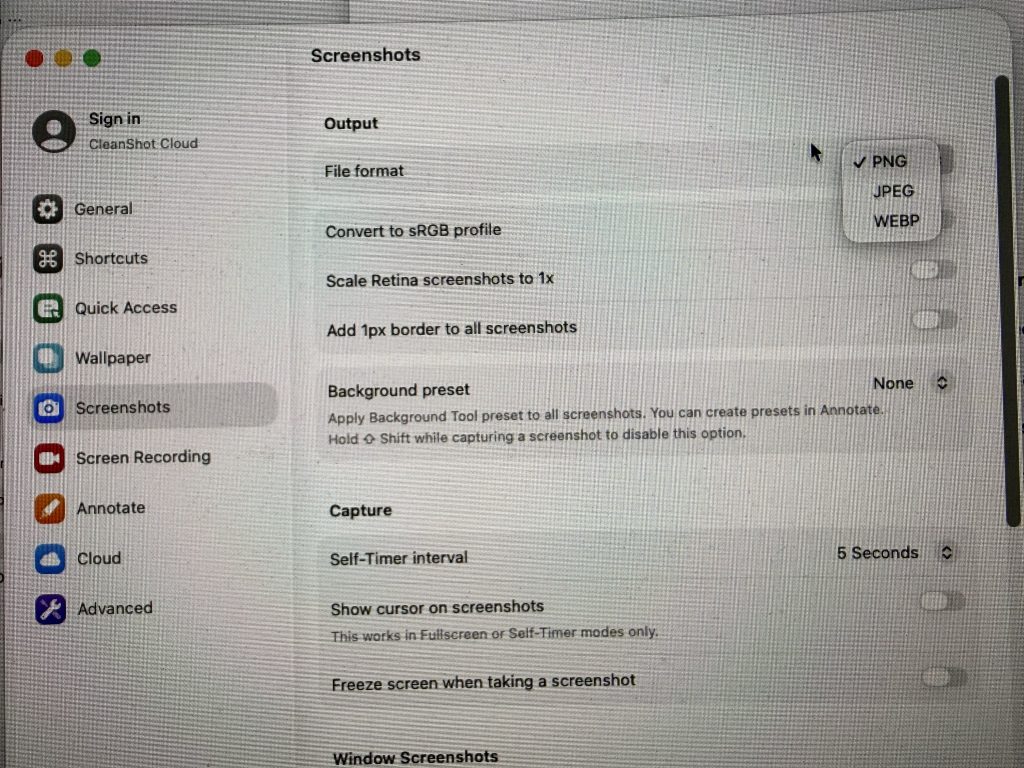
2026-09-18 05.21.02.jpg
2) 3.4 MB – Converted with ‘Convert Image’ service (4032×3024, unchanged)
Always 1/3 size (0.3), 70% smaller.
Unfortunately this is a bit tricky to properly show results of in web ‘ecosystem’, as HEIC is NOT a supported format in most web browsers (Apple Safari being one exception) but as you see in screenshot below, also web servers can have their own restrictions:
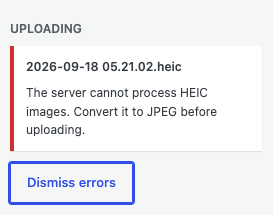
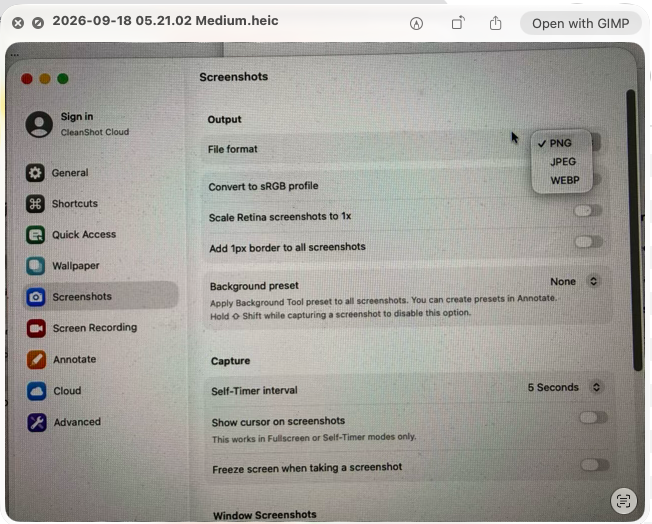
3) 79 KB – Converted with ‘Convert Image’ service to Medium, HEIC (640 × 480)
Yes, it’s really smaller, both in
- Pixels, from 4032×3024 (=12 MP) to 640×480 (~0.3 MP), about 95% smaller (the Medium choice)
- File size, from 11.4 MB to 79 KB, about 93% smaller!
- (Convert Image with Medium setting, and JPEG, gave a 111 KB size file – the 79 KB HEIC is around 29% smaller than the JPEG)

And in a case like this, fully acceptable conversion as all the relevant details can still be seen:
A HEIC Photo (iPhone) – 2.3 MB from Camera/Phone
1) 2.3 MB – Original from camera/phone (4032 × 3024)
2026-09-21 14.38.10 1 org.heic
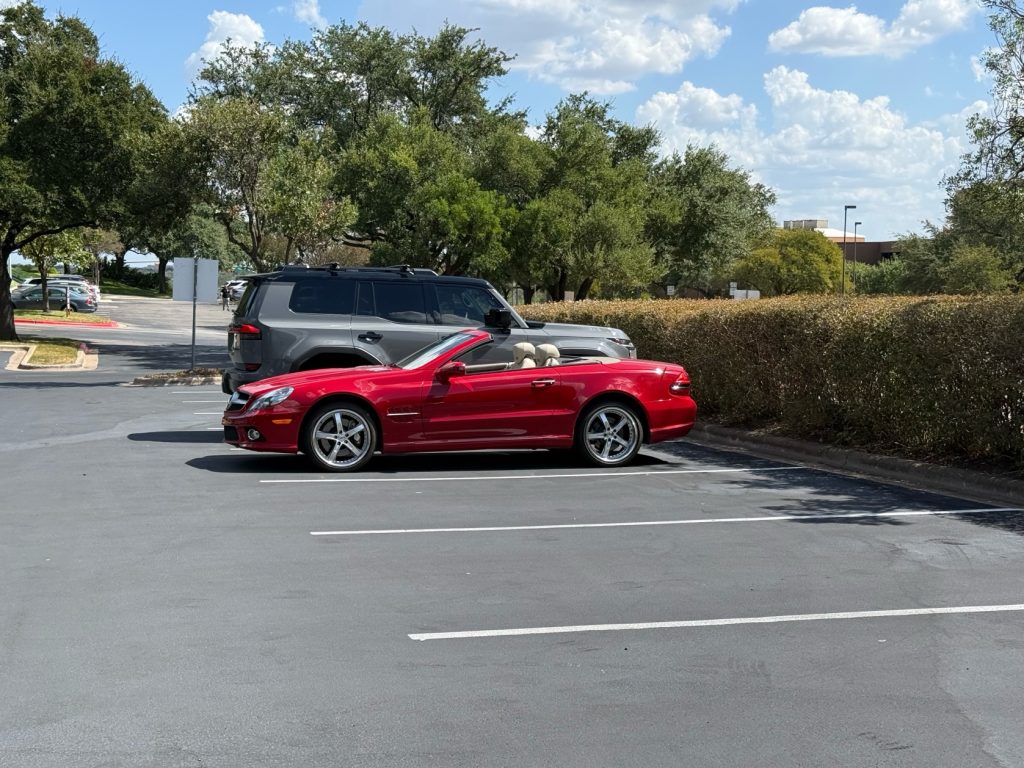
| 2026-09-21 14.38.10 1 org.heic | 4032 × 3024 | 2.3 MB | Original |
2+) Variants, using Convert Image service/workflow
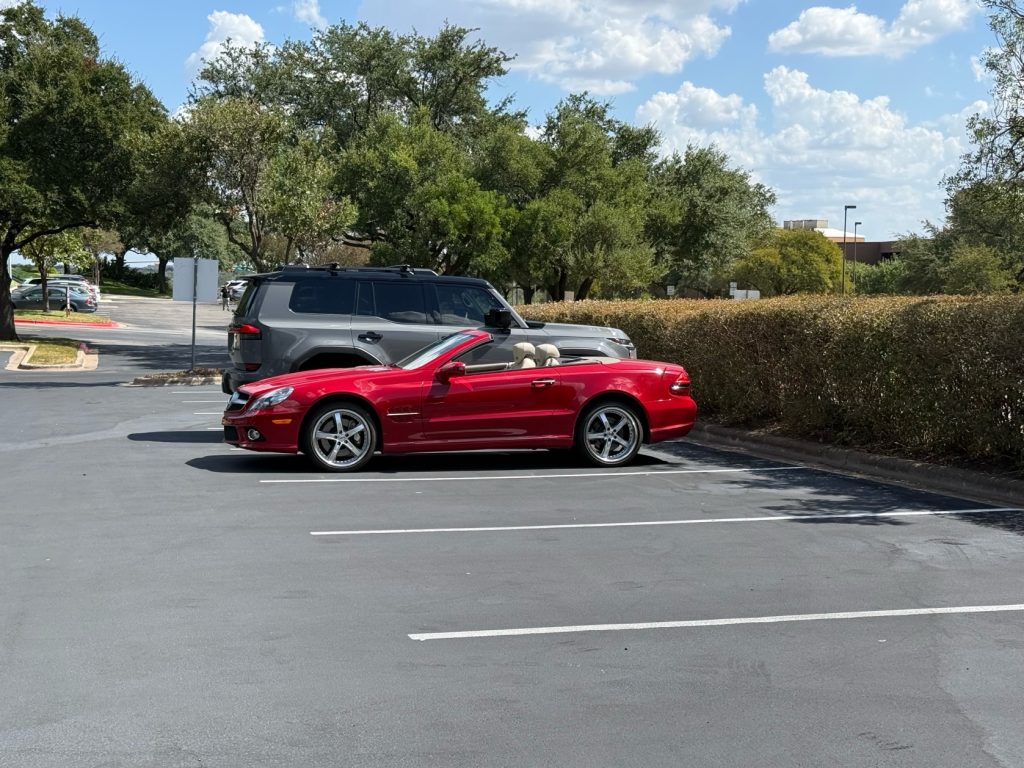
| 2026-09-21 14.38.10 2 Convert Image – Actual.heic | 4032 × 3024 | 1.9 MB |
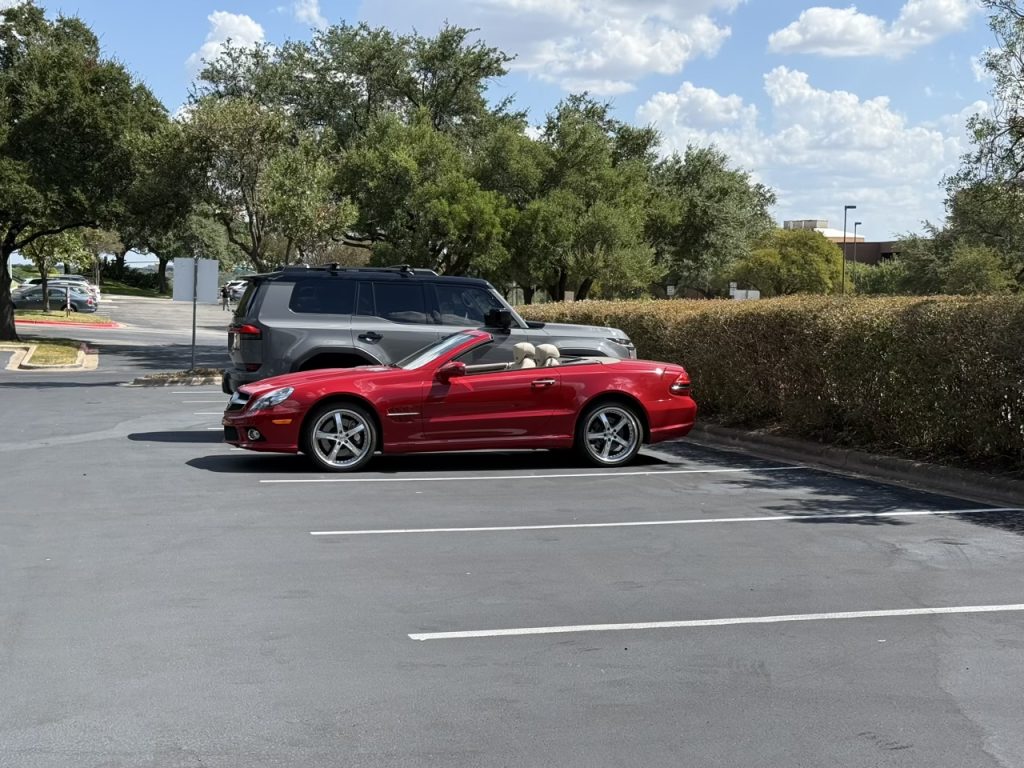
| 2026-09-21 14.38.10 3 Convert Image – Large.heic | 1280 × 960 | 333 KB |

| 2026-09-21 14.38.10 4 Convert Image – Medium.heic | 640 × 480 | 90 KB |

| 2026-09-21 14.38.10 5 Convert Image – Small.heic | 320 × 240 | 26 KB |
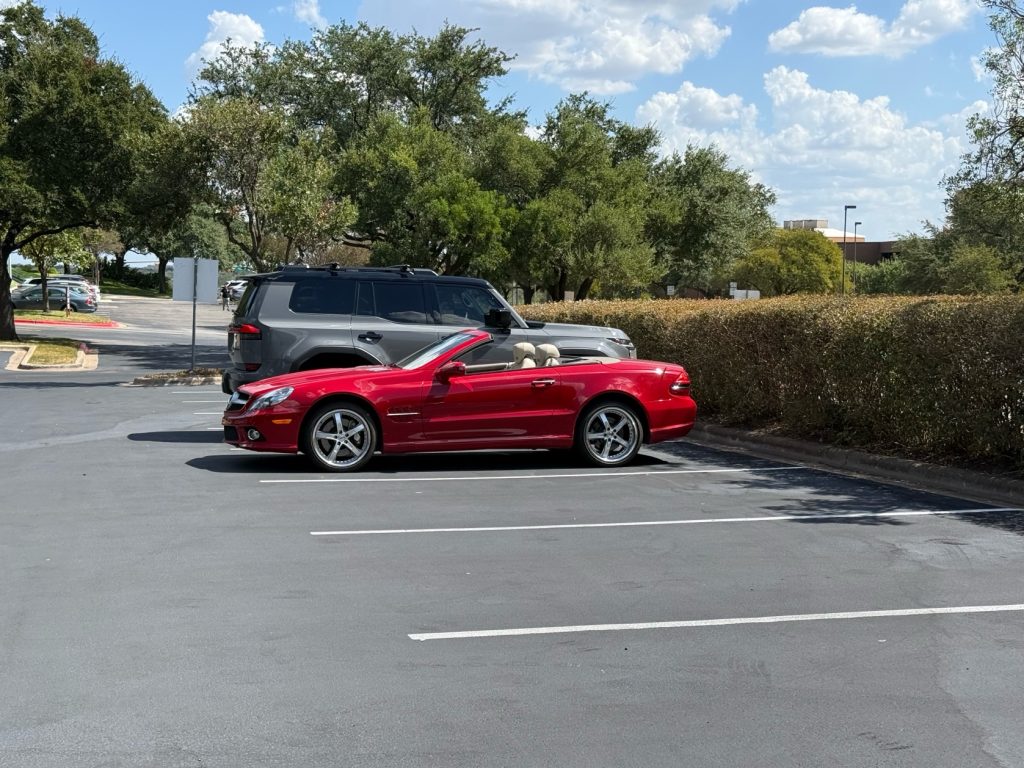
| 2026-09-21 14.38.10 6 Convert Image – Actual, JPEG 1 org.jpeg | 4032 × 3024 | 3.4 MB |
3+) Using MediaFixerJ Utility, MFJS01 setting

| 2026-09-21 14.38.10 7 Convert Image – Actual, JPEG 1 org MFJS01.heic | 1280 × 960 | 297 KB |
Video and HEVC Encoding, H.265
We have a couple of OAS-series documents of more relevance around video and HEVC:
- OAS02004-ResourcesForVideo-Encode-Transport-Decode.pdf:
“With focus on H.264 (a.k.a. MPEG-4 Part 10, Advanced Video Coding (AVC) (2003-)) and H.265 (a.k.a. MPEG-H Part 2, High Efficiency Video Coding (HVEC) (2013-)).” - OAS02008-CaptureVideoStreamsWithOBS.pdf
The latter highlights one critical detail in terms of working with HEVC encoded video on Apple devices.
Materials encoded in HVEC *MUST* be tagged ‘hvc1’, and NOT ‘hev1’ (which is default by ffmpeg) otherwise files will not be recognized or usable on Apple devices.
Table from OAS02008:
| Matroska | H.264/AVC | H.265/HEVC | |||||
| Container | .mkv | != | .mp4 | == | .mp4 | ||
| General, Format | Matroska | != | MPEG-4 | MPEG-4 | |||
| Video, Format | AVC | == | AVC | != | HEVC | ||
| Codec ID | V_MPEG4/ISO/AVC | != | avc1 | != | hev1 (❌ !Apple) | != | hvc1 (✅ Apple) |
| Audio, Format | AAC LC | == | AAC LC | == | AAC LC | == | AAC LC |
| Codec ID | A_AAC-2 | != | mp4a-40-2 | == | mp4a-40-2 | == | mp4a-40-2 |
| Bit rate | n/a (46.875 FPS) | != | 192 kb/s | == | 192 kb/s | != | 128 kb/s |
| File size | 538 MiB | != | 539 Mib | != | 276 MiB | != | 275 MiB |
| Overall bit rate | 2 589 kb/s | != | 2 595 kb/s | != | 1 327 kb/s | != | 1 263 kb/s |
| ∆ Org. rec/.mkv | (the baseline) | != | +0.23% | != | 49% smaller,=
51% of original |
!= | 51% smaller,=
49% of original |
| QuickLook/QT Pl. | ❌ | != | ✅ | ❌ | != | ✅ | |
| VLC (e.g.) | ✅ | == | ✅ | ✅ | == | ✅ | |
Values in italics: As examples, for instance other codec may (possibly) be allowed. Shown values are only provided as examples and comes for a 29m3s recording, with transcodings using ffmpeg.
Note: ffmpeg …mkv -c:v libx265 ….mp4 without -vtag hvc1 make video with hev1 tag.
Notes on Video Container Formats
(Anyone interested in learning more around details of video should take a serious look into ffmpeg tools, ffmpeg.org)
A container format is some variant of file that can consist of a variety of different types of materials, like one or more sets/streams of:
- Audio
- Video
- Text
- like subtitles, GPS information, other more or less proprietary streams of data depending of camera/device shooting/creating the video (e.g. thermal sensor data)
As also visible in table above:
- Matroska, .mkv, is one example of container format.
- MPEG-4 and MPEG-H both using .mp4 extension is currently maybe one of the more interesting formats, with
- Video encoded with older AVC encoder means H.264 files, larger but more generally usable
- Video encoded with never HEVC encoder means H.265 files, way smaller, some limits in who can view (older devices, especially non-Apple may be unable)
- MOV files by Apple…:
“Moving Picture Experts Group (MPEG) developed the MP4 format as the widely supported global standard, while Apple Inc. created the MOV format (QuickTime File Format) in 1991 as its proprietary native container. Although MOV is the default recording format for iPhones, iPads, and Macs, it is technically very similar to MP4 and can often be converted by simply renaming the extension if it uses the H.264 codec.
MOV files store high-quality audio, video, and text tracks in separate layers, making them ideal for professional editing in apps like Final Cut Pro and iMovie. However, they typically result in larger file sizes compared to MP4 due to less compression and extensive metadata. While MOV files play natively on Apple devices, users on Windows or for web sharing often convert them to MP4 for broader compatibility with third-party software and platforms like YouTube or Facebook. “